Technology

What is a humidifier?

humidifier

What is a humidifier?

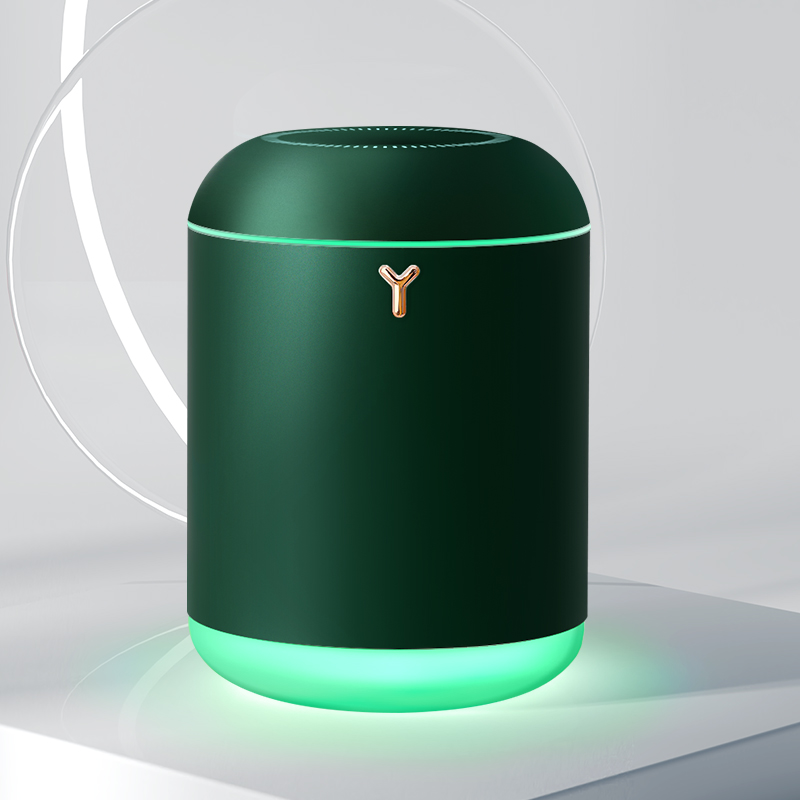
A humidifier is a device that adds moisture to increase moisture levels in the air (humidity) to prevent dryness that can cause irritation in many parts of the body.

Dry sinuses, bloody noses, and cracked lips — humidifiers can help soothe these familiar problems caused by dry indoor air. And cool-mist humidifiers also may help ease symptoms of a cold or other respiratory condition.

However, overusing humidifiers can potentially worsen respiratory problems. It’s important to know how to use them correctly.

What can I use a humidifier for?

Humidity acts as a natural moisturizing agent that can relieve dryness. For this reason, humidifiers are often used for relieving:

  • dry skin
  • sinus congestion/headache
  • dry throat
  • nose irritation
  • bloody noses
  • irritated vocal cords
  • dry cough
  • cracked lips

You may be prone to these discomforts when the air in your home is dry. This is especially common during the winter months or when an air conditioner is being used during the summer.

Types of humidifiers

The type of humidifier you choose depends on your preferences, budget, and the size of the area you want to add moisture to. There are five types of humidifiers:

  • central humidifiers
  • evaporators
  • impeller humidifiers
  • steam vaporizers
  • ultrasonic humidifiers

Humidifier sizes

Humidifiers are often classified as a console or portable/personal.

Console units are meant to add moisture to the entire house. They’re often very large, but usually have wheels so you can easily move them around. Console units are meant to add moisture to one room.

Personal (or portable) humidifiers are the smallest and are the best choice if you need a humidifier while traveling.

Central humidifiers

Central humidifiers are built directly into your home’s air conditioning or heating unit. These are the most expensive types of humidifiers, but they’re the best choice if you want to add humidity throughout the entire house.

Traditional humidifiers carry a potential risk of burns from the steam they emit. Central humidifiers don’t emit steam.

Evaporators

Evaporators blow moisture through a moistened filter. Fans power the unit and expel the humidity into the air from a single-unit system.

These are more affordable than central humidifiers, but the downside is that they only work in one room at a time. They may also expel too much moisture into the air. This can be problematic for people with asthma, as it raises the likelihood of mold growth.

Impeller humidifiers

Impeller humidifiers work with the help of rotating disks that run at high speeds. These units are often less expensive. They’re also among the most child-friendly devices because they create cool mist and carry no risk of burns.

The downside is, like evaporators, they only work in a single room. They can potentially cause breathing difficulties for people with allergies and asthma when they’re overused.

Steam vaporizers

Steam vaporizers are electrically powered. They heat water and then cool it before expelling it into the air. These are the most inexpensive and portable humidifiers. You can purchase them at drugstores.

This type can cause burns, so it’s not the most kid-friendly.

Ultrasonic humidifiers

Ultrasonic humidifiers produce a cool mist with the help of ultrasonic vibration. The units vary in price, depending on the size you need for your home. Both cool and warm mist versions are available.

An ultrasonic humidifier — especially the cool-mist version — is a good choice if you have children.

Controlling humidity levels

Adding humidity to the air may be beneficial, but too much humidity can cause health issues. High humidity levels can worsen respiratory problems and create uncomfortable dampness in the air. This can encourage the growth of:

  • dust mites
  • mildew
  • mold
  • harmful bacteria

Mayo Clinic recommends that humidity stay between 30 and 50 percent. A hygrometer can determine how much humidity is in your home. Some central humidifiers come equipped with hygrometers, but you can also find them at hardware stores.

Test the humidity daily, especially if someone in your household has allergies or asthma.

Possible risks

Burns are the most common injuries associated with humidifiers. Take special care if you have children. Never let children handle humidifiers, and don’t place a warm-mist steamer in a child’s bedroom.

Allowing a unit to expel too much moisture can create condensation on the walls. As a result, mold can grow and spread throughout the home.

Unclean humidifiers can cause bacterial growth that can promote coughs and colds. Steam vaporizers can get dirty quickly, but they’re also among the easiest to clean. Rinse out all the used water between uses. Following the manufacturer’s instructions, clean the unit regularly to prevent bacterial growth. Wash the bucket and filter system every two to three days during usage.

Humidifiers can potentially emit minerals and microorganisms. They’re not necessarily harmful, but the residue can bother people with asthma. Use distilled water to avoid this problem.

When used with care, humidifiers can make a significant difference when it comes to dry skin and airways. However, keep in mind that this is a home remedy — not a medical treatment. Stop using a humidifier and call your doctor if you have symptoms that don’t improve or seem to be getting worse because of the humidifier.

What is Hard Disk Drive (HDD)?

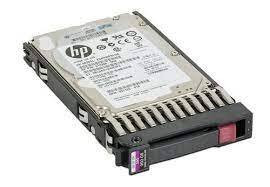
HDD stands for Hard Disk Drive. It is a type of Server HDD device that rotates magnetic disks for storing information. The HDD features a thin, metal disk that turns or spins to read and write data when needed. The speed that the disk spins is generally between 4200 and 7200 RPM, where RPM refers to the number of revolutions per minute. The higher the speed that is preset and the higher the speed at which the drive can be able to read or write information.

What is a Solid State Drive (SSD)?

SSD means Solid State Drive. The storage device makes use of memory flash to save information. For ease of understanding it is possible to imagine USB flash drives as. Contrary to HDD which is a type of HDD, the Solid State Drive you have no moving components, which means the disk isn’t heated up and it uses less energy, and it is able to write and read Fujitsu hard drive data with greater speed.

After we’ve learned the advantages of HDD as well as SSD, let’s look at their Pros and cons.

Pros and Cons of HDD

Pros of HDD:

  • Cheap: HDD drives are cheaper and less expensive when compared with SSD drives.

  • Storage HDD capacities of drives is different for laptops and desktops. With Desktops 10 terabytes, and 2 Terabytes for laptops. Since storage is less expensive, this aspect could be considered beneficial.

Cons of HDD:

  • Speed: As stated previously, HDD uses rotational disks equipped with a head that reads and writes the data, and consequently is slow. This can, in reality, cause a slow loading for your website, particularly databases-based websites.

  • Efficiency: They consume more energy due to the rotation of disks and they are not as eco-friendly as they could be. Furthermore, HDDs are susceptible to damage due to the fact that they contain many moving parts that are broken and can cut down the size of the disk.

Pros and Cons of SSD

Pros of SSD:

  • Speed: Since SSD utilizes flash memory and has fewer moving parts, the speed of your device’s operation or loads your website is more efficient.

  • Reliable The number of moving parts that are directly related to less breakage or wear and tear on the SSD. So, SSDs are more efficient in conserving energy, and are also greener.

Cons of SSD:

  • It is expensive: As a modern technology in comparison to the HDD, SSD is expensive even though they offer outstanding performance.

  • Storage The capacity of storage is a factor that is linked to cost. Contrary to HDD SSDs, SSDs are costly, and therefore obtaining the same storage capacity that you get from HDD will cost you a little more than you anticipated.

What is the most appropriate choice for you?

HDD and SSD each have their own advantages and drawbacks, and the selection of data storage is based on your specific needs such as the one we provide on our website. It is worth noting that when regards to efficiency, speed, and reliability, the Solid State Drive (SSD) is the clear winner.

But when you are faced with the decision of the most suitable data storage device for your site, it is entirely dependent on the requirements of your site. If durability and speed are important to you consider checking out we recently launched Fujitsu hard server hosting.

SSD Vs HDD The basics of SSD vs HDD and why it is important

It can be challenging to know if hosting companies use SSD and HDD storage. Particularly with regards to shared hosting. Web hosts do not always state the fact that their hosting services are solid-state drives or hard drives. However, since the solid-state drive is quicker hosting providers that provide servers that run on solid-state technology usually do make mention of it.

Before we move on we should discuss precisely what is the difference between SSDs or hard disks. SSDs are typically costlier than HDDs which means that hosting can be more costly too. Understanding what the differences in performance are will assist you in justifying the expense.

The most significant difference between SSD as compared to HDD

The basic concepts of hard drives

In the 1950s, we saw the development of today’s hard storage technology for drives. Based on magnetics, it functions similarly to vinyl records. The information stored on a hard drive is placed on a disk, which is then mounted on a rotating wheel that spins it. Each drive has a device called a head of the drive that travels along the disk in order to locate the data. The head scans the data, then sends information to computers.

Hard drives in their own have various speeds. The speed is determined by the speed of rotation of the disc (5400 to 7200 RPM for instance). Also, the bus connects the drive with the motherboard. There are many bus types, including two that are centered around ATA technology: Parallel ATA as well as serial ATA. Additionally, there’s the more server-oriented SCSI and, of course, serially attached SCSI. A different server standard is Fibre Channel.

There’s a resemblance between floppy and hard drives. Soft magnetic disks were extensively used for data transfer as well as a storage back in the day. However, over time they have evolved to hold larger amounts of data. The typical hard drive can store several Terabytes (TB) of information.

Samsung Galaxy S10/S10+ Connecting To PC [Fixed]

Samsung Galaxy S10

How to fix Samsung Galaxy S10/S10+ that is not connecting to PC

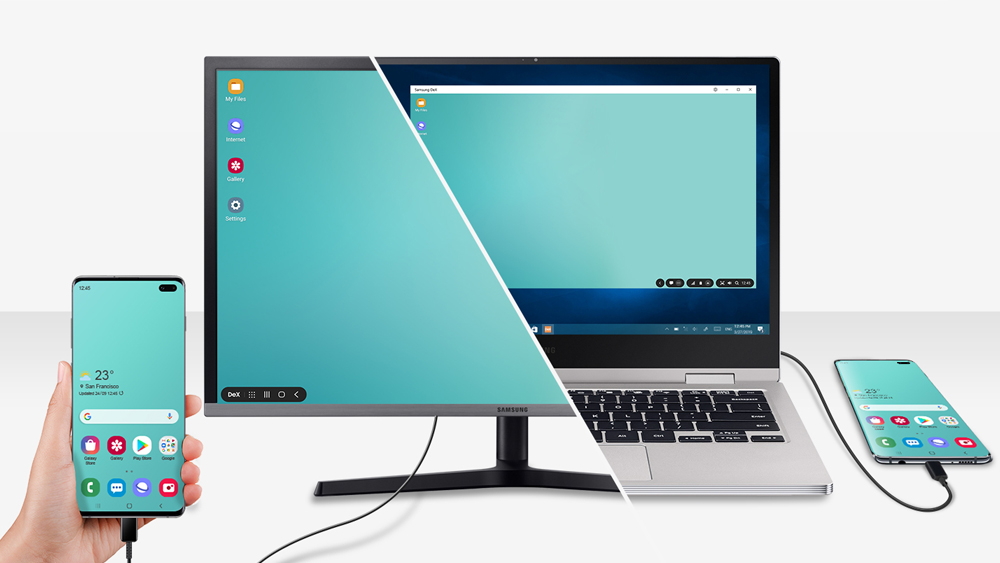
Samsung Galaxy S10 PC Connectivity Issue. Sometimes, you need to connect your Galaxy S10/S10+ to a computer for sharing files or just for charging. For example, you have tons of photos on your phone and want to transfer some of them to free up the storage. Or, you want to export an old music album from your computer to the Galaxy phone. 

Samsung Galaxy S10 Update Driver

The cause of Samsung Galaxy S10/S10+ that is not connecting to PC can be related to the USB driver. Perhaps, it is outdated. Updating the driver may get away with the issue. Before we start the process, it will be better to update the OS of both devices, your phone, and PC.


First Update your Phone Software.
Download drivers for PC, download Samsung drivers only Like Smart Switch 
After driver installation and the phone software update

Once the drivers are installed, reboot your PC and then reconnect your phone to it.

 if it’s still not recognized, then try the next procedure.

1. Connect your Galaxy S10/S10+ to PC using a USB cable
2. Go to Device Manager
3. Find your device on the list and right-click on it
4. Select Uninstall and unplug your phone from the PC
5. Reconnect your phone to the PC, and it will re-install the driver

Reboot Samsung Galaxy S10

It would be nice if you never forgot to put the rebooting method on the troubleshooting list, no matter the issue. It is the basic one and may solve your device problem within seconds, including Samsung Galaxy S10/S10+ that is not connecting to PC. Power off your phone for a few seconds, and turn it back on again. Try to restart your PC as well.

Troubleshoot The Connection Samsung Galaxy S10

When it comes to export/import files, the original cable matches your phone like no other. The speed of charging and data transfer is just perfect. If you cannot get the original one for some reason, make sure you use a good quality data cable with proper data speed. However, to troubleshoot the connection between your Galaxy S10/S10+ and PC, you also need to check the ports.

1. Try the different USB cables if possible. Some USB cables can only work for charging, not transferring data. Therefore, make sure you use a proper USB data cable.

2. Check the port of your phone. Clean up gently with a soft brush to get rid of dust and debris, then test it on another computer.

3. Check the ports of your PC. Clean them up with a soft brush carefully. Don’t use a hard tool. Then, try to connect another device to that PC.

Check USB Connection Mode on Samsung Galaxy S10

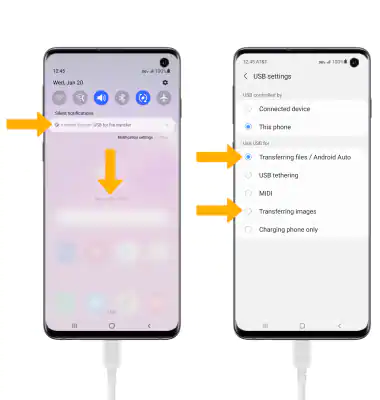
When you plug your Samsung phone into a computer, it doesn’t know if you want to charge your phone or transfer files. By default, it may be set as charging mode instead of the file transfer. Perhaps, that is why your Samsung Galaxy S10/S10+ not connecting to PC. To find out, check USB connection settings.

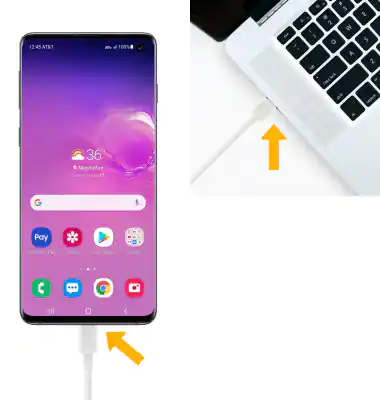
1. Plug your Galaxy S10/S10+ to PC using a USB data cable

2. Place your finger o the top of your phone screen down and slide it down to bring the notification bar.

3. You shall see the Android System notification telling you the current status of USB mode. Tap the USB connection mode and switch it to Transfer Files.

1. Use a USB data cable to connect your Galaxy S10/S10+ to PC
2. Click the Start button and select Device Manager
3. Look at the Portable Devices section, and you will find your Galaxy phone on the list. Right-click on your phone name.
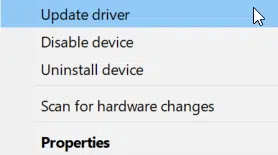
4. On the drop-down menu, click Update driver and follow the instructions.

Enable USB Debugging

None of the methods above fix Samsung Galaxy S10/S10+ that is not connecting to PC issue? Try to enable USB debugging on your phone.

1. Go to Settings and tap About phone
2. Tap Software Information
3. Tap the Built number option seven times
4. Enter your PIN or password if necessary
5. Tap the Developer options switch button to activate it, then turn on USB debugging
6. Find the USB configuration option and set it to MTP
7. Restart your Galaxy S10/S10+